Remote SSH to UW-Madison CS Lab with VSCode
This tutorial teaches you how to remote ssh to the CS Lab at University of Wisconsin-Madison using Visual Studio Code.
Preparation
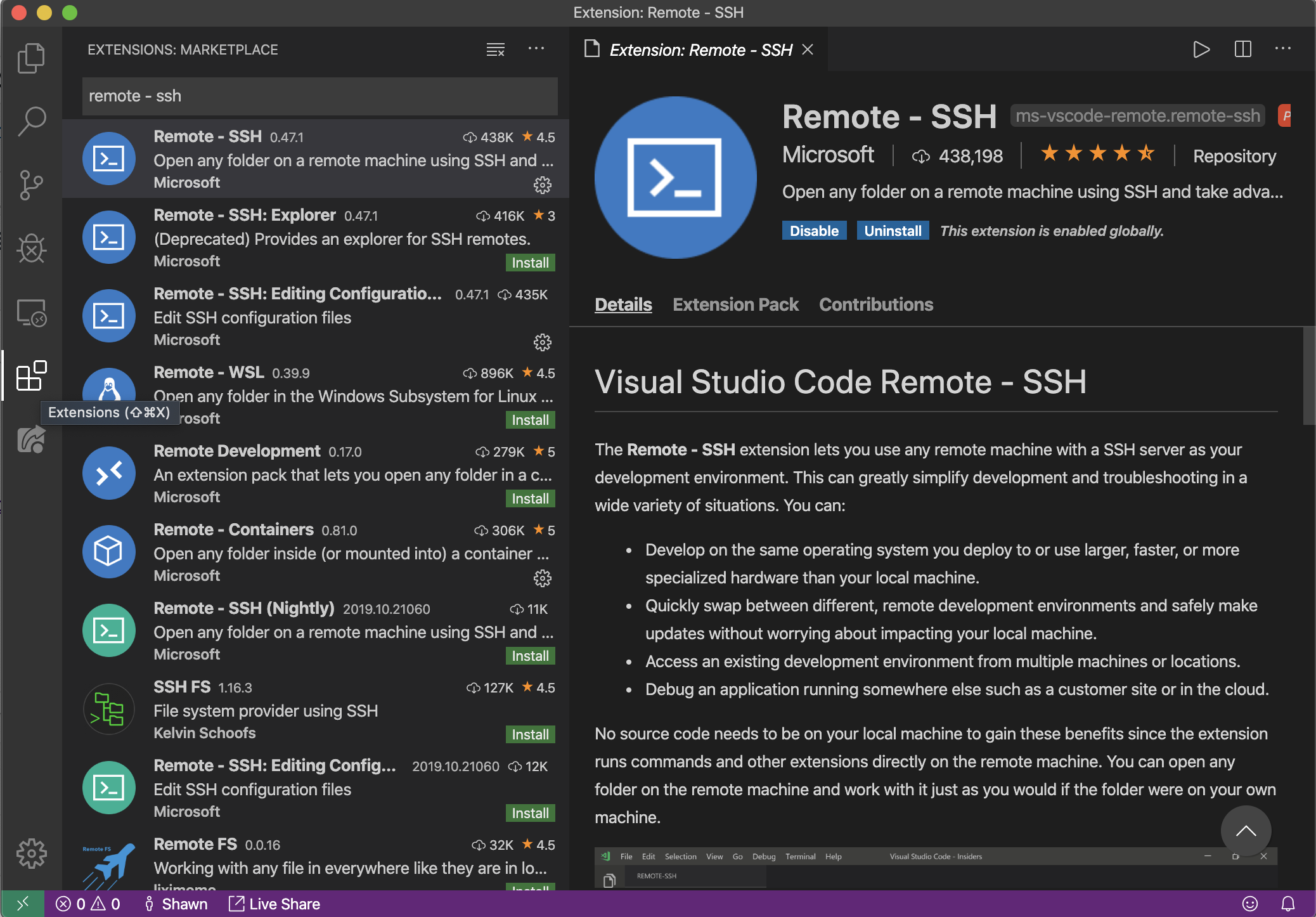
1. Download Visual Studio Code from code.visualstudio.com and install it. 2. Install plugin “Remote - SSH” in the Extensions view
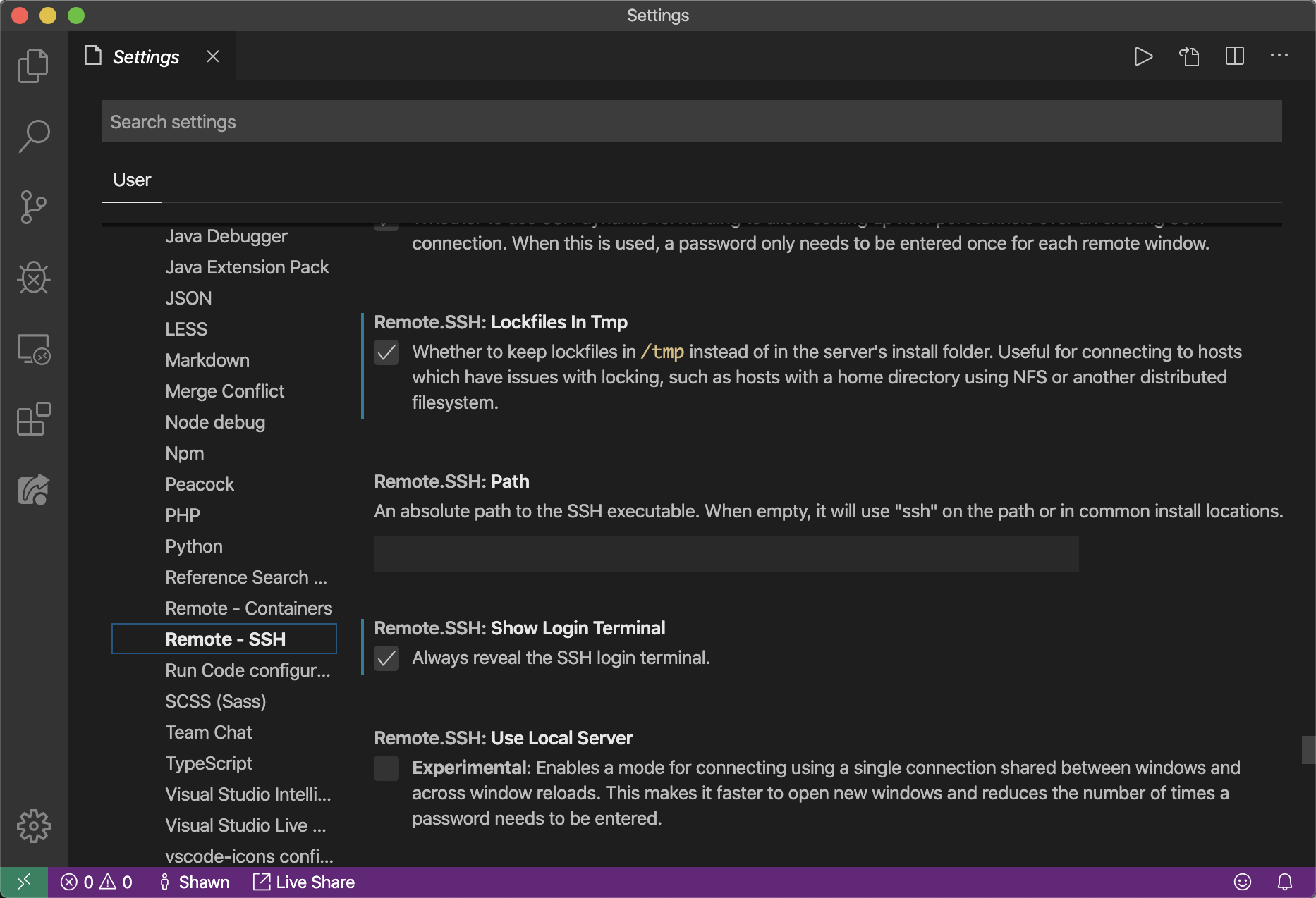
3. Open settings. Check the box for “Remote.SSH: Lockfiles In Tmp” and “Remote.SSH: Show Login Terminal” File locking does not work when the home directory is mounted from an AFS. Setting the path of lockfiles to /tmp solves the problem. For more detail, see https://github.com/microsoft/vscode-remote-release/issues/540 For the second setting, VS Code should automatically prompt you to enter the password, but I had some trouble seeing the prompt before. I suggest enabling this so the password is entered in the terminal like normal ssh.
SSH Configuration
1. In the Remote Explorer view, click the Configure icon at the right of “SSH TARGETS” 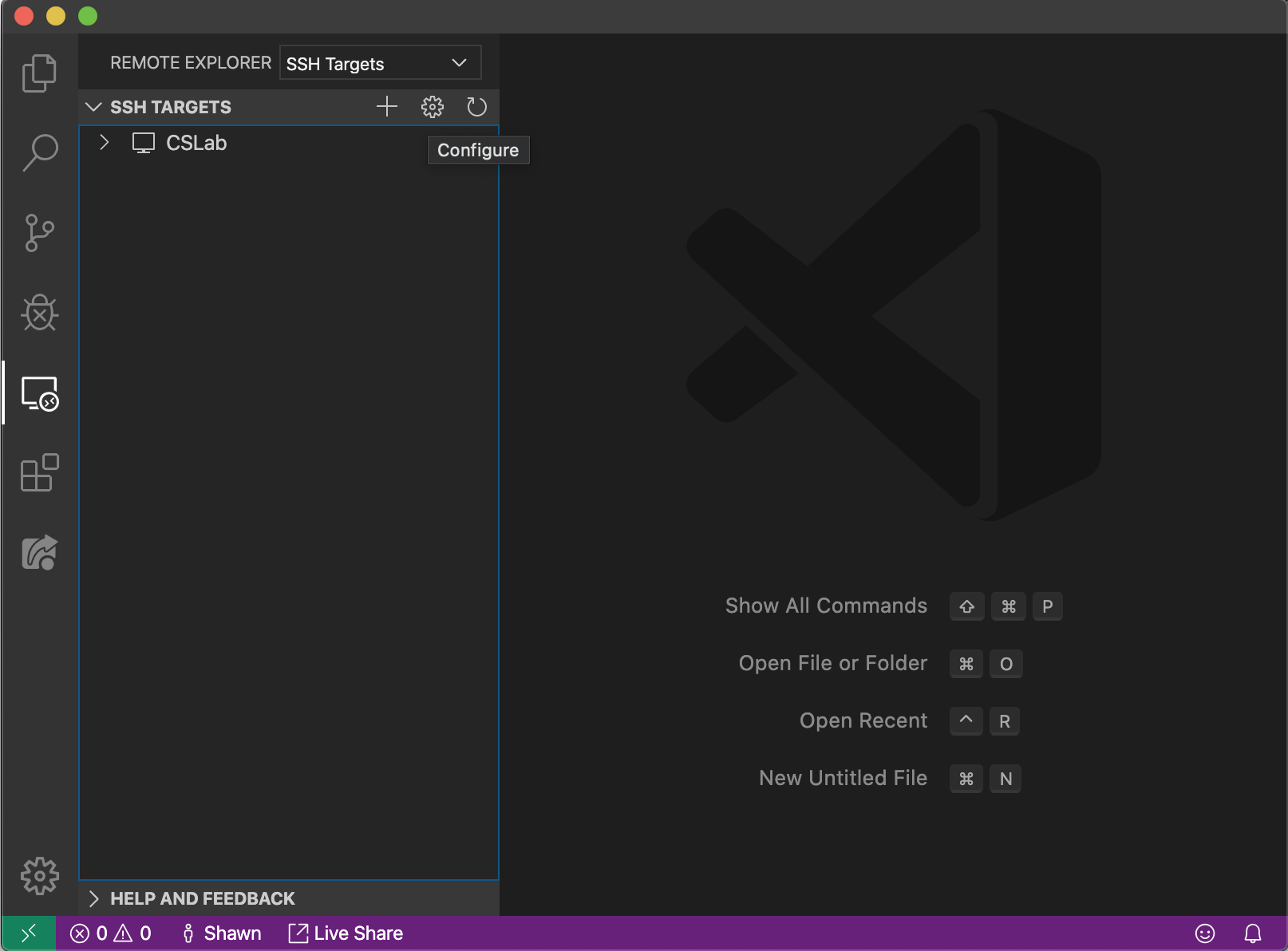 2. Select the first SSH configuration file to edit 3. Add the CS Lab host to the file using the SSH config file format
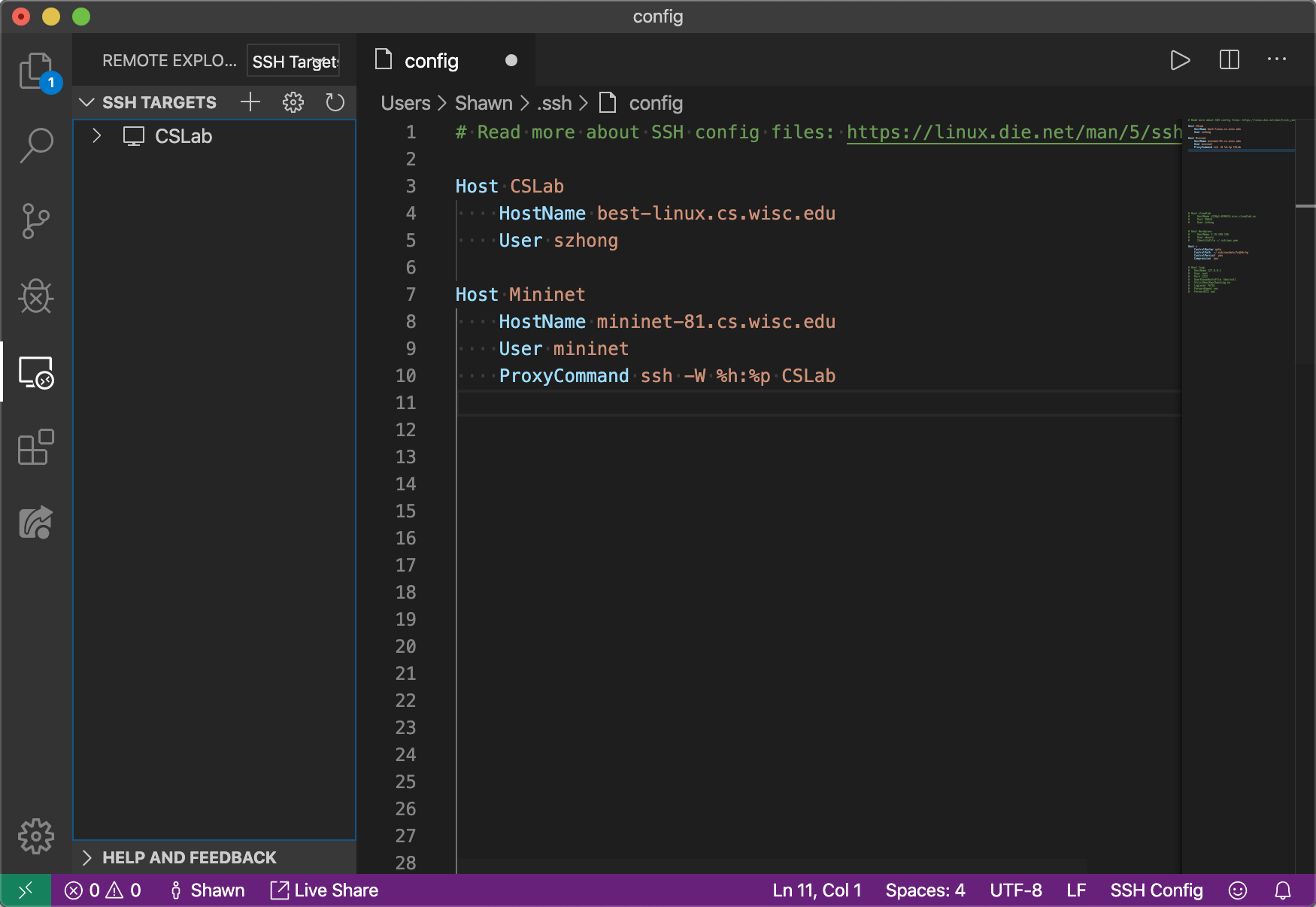
For example,
Host CSLab
    HostName best-linux.cs.wisc.edu
    User szhong
If you want to connect to a machine that is only accessible inside the department network, you can use ProxyCommand. Take mininet as an example:
Host Mininet
    HostName mininet-xx.cs.wisc.edu
    User mininet
    ProxyCommand ssh -W %h:%p CSLab
Optionally, If you are on macOS and Linux and you want to reduce how often you have to enter a password, you can add the following entry to the config file
Host *
    ControlMaster auto
    ControlPersist  600
    ControlPath  ~/.ssh/%r@%h-%p
    Compression  yes
It reuses the ssh connection when you connect to the machine next time (within the timeout), so you don’t need to enter the password or do anything.
Remote SSH
You can now remote SSH to the CS Lab by clicking the newly-added entry under “SSH TARGETS” A new VSCode windows will pop up with the bottom right corner showing “SSH: CSLab”
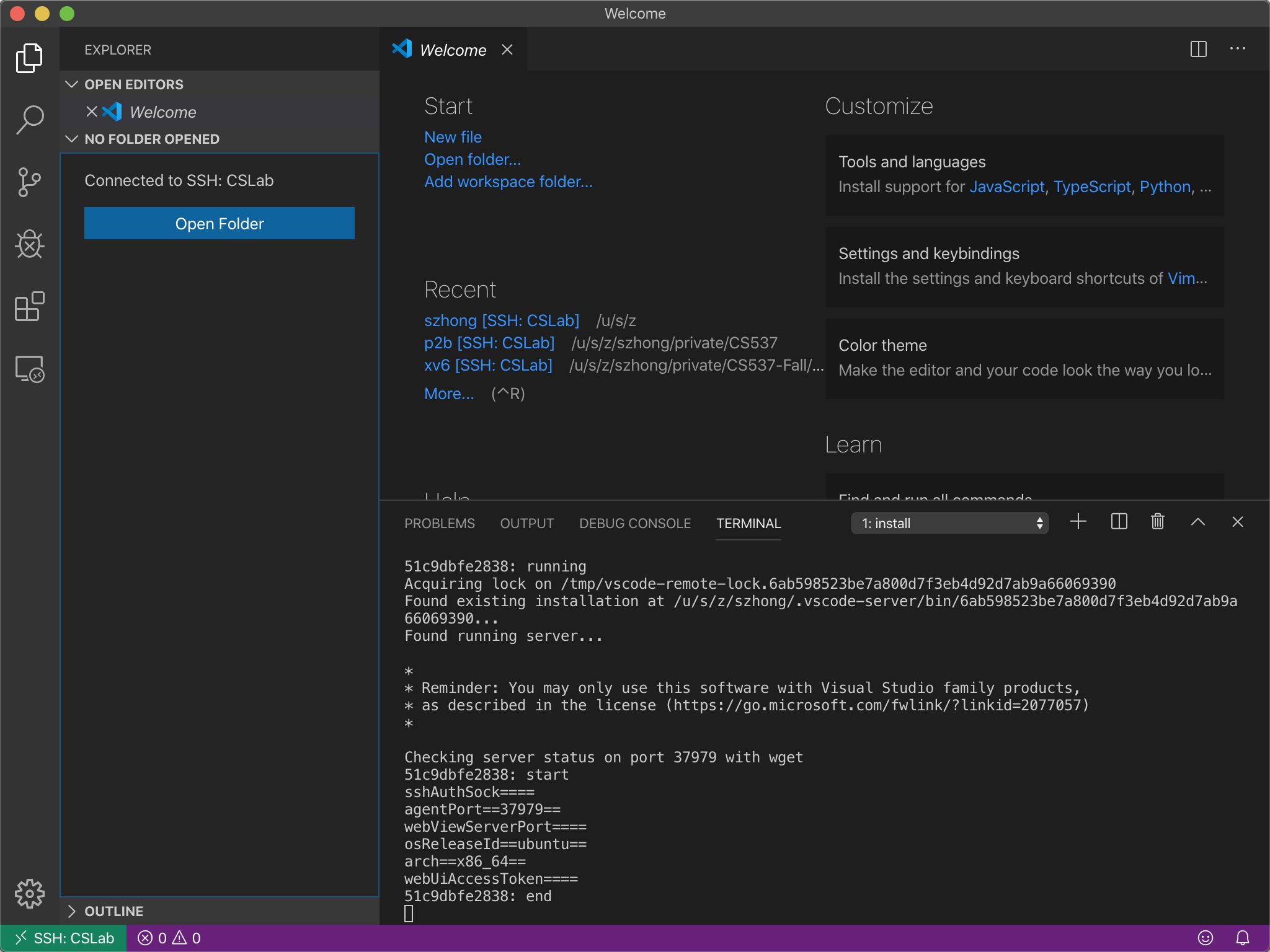
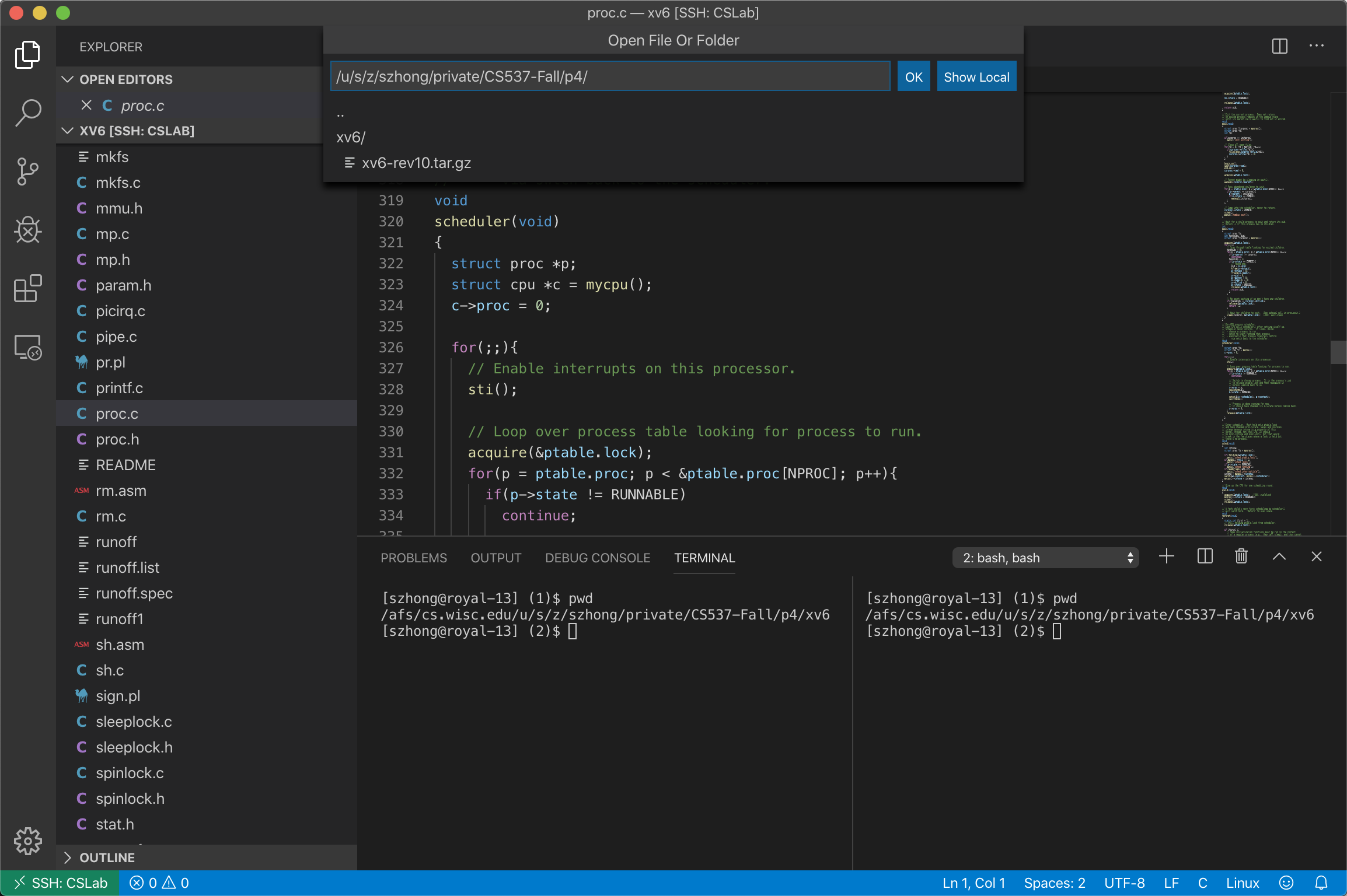
Open a directory and happy coding :D
Recommended Plugins
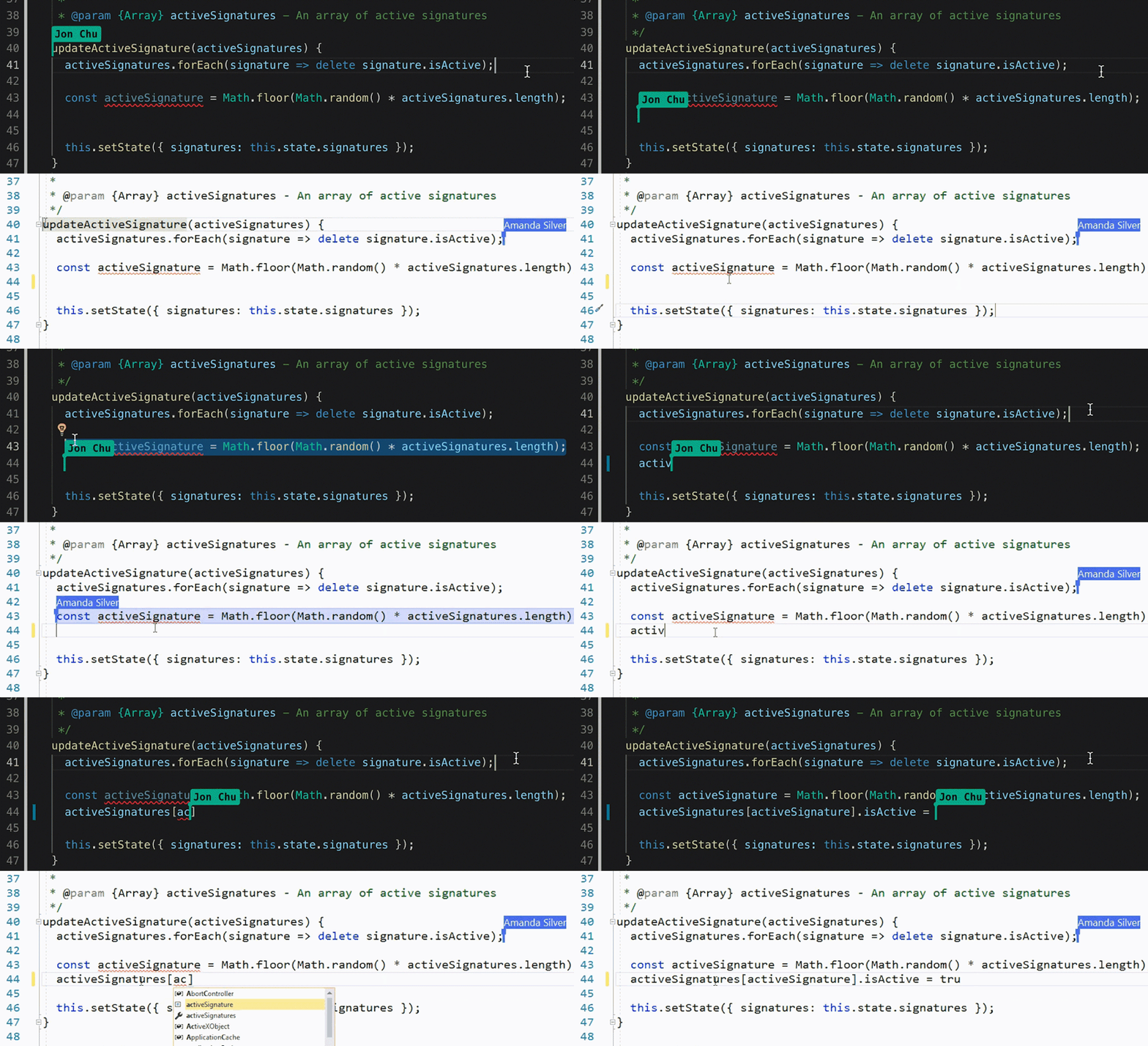
- Live share is pretty helpful for pair-programming & group projects. I have a tutorial about this at https://shawnzhong.com/2019/02/28/pair-programming-using-vscode-live-share/
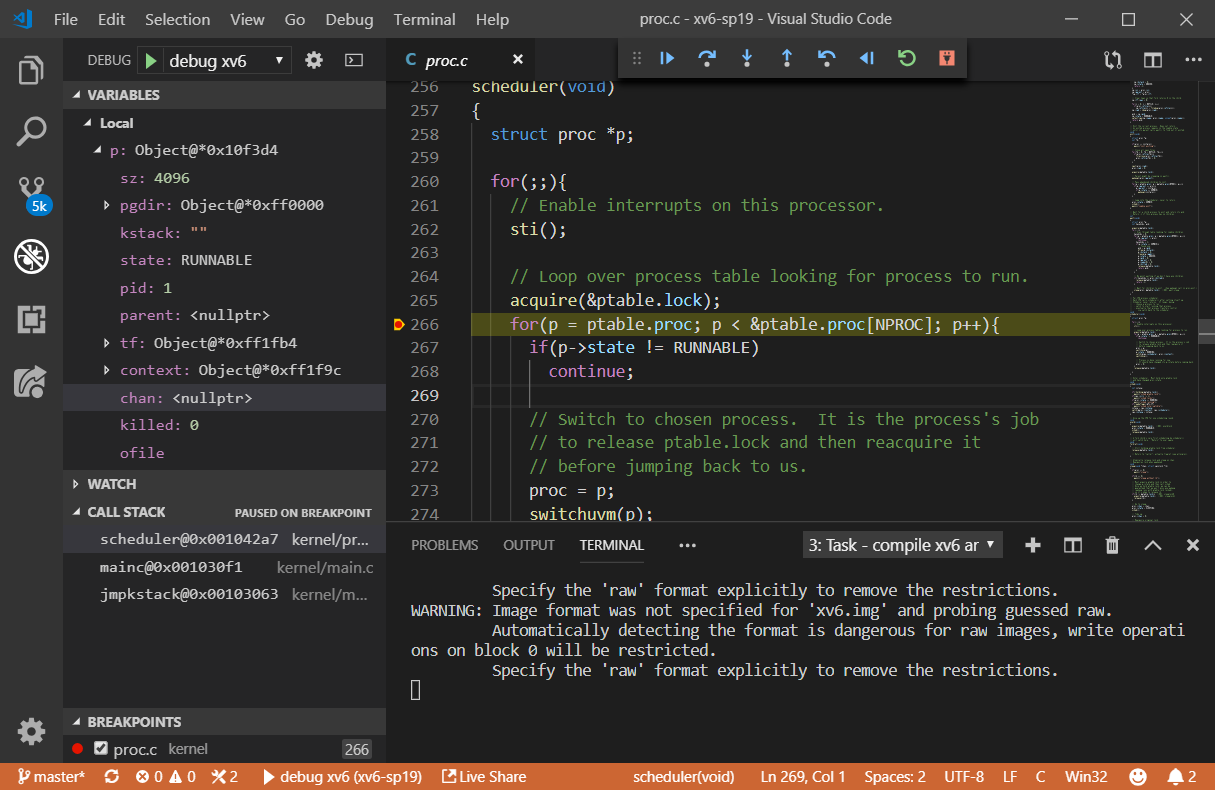
- For xv6 projects, you can install the “Native Debug” plugin for debugging. Along with the live share plugin, you can have collaborative debugging! See previous tutorial at https://shawnzhong.com/2019/03/25/co-debug-xv6-on-windows-using-vscode/
- If you are developing C or C++, the official C/C++ plugin is very useful for auto-completion, linting, etc.
- For Java developer, I suggest using Language Support for Java(TM) by Red Hat. Note that all the plugins are running at the remote machine and this plugin is hungry at the memory. If the target machine has less than 1G of memory (say mininet VM), Java Language Support by George Fraser is preferred as it has less memory footprint.
- The Resource Monitor plugin displays CPU frequency, usage, memory consumption, and battery percentage remaining in the status bar. Pretty helpful for remote machines with low resources.